
How to Create Accurate Subtitles for YouTube Videos (Free Method)
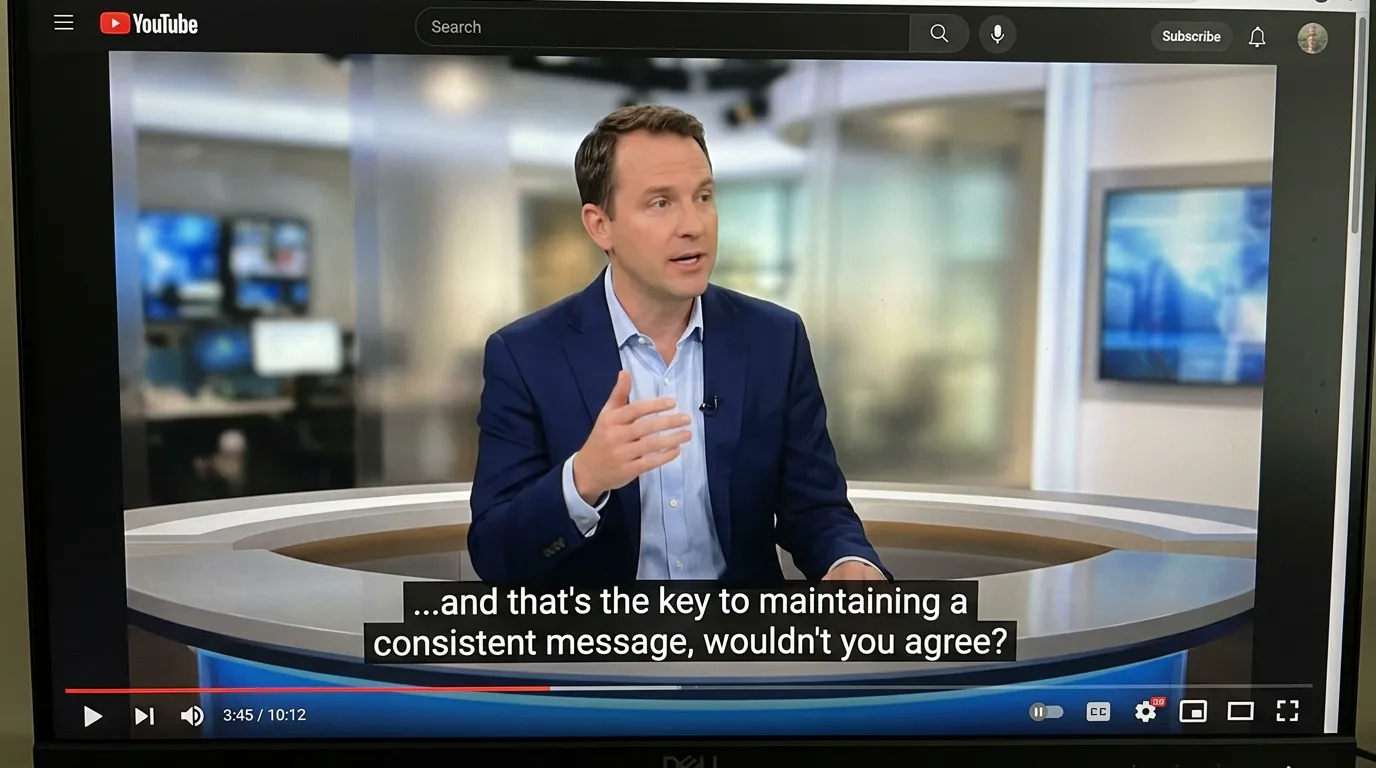
YouTube's auto-generated captions are notoriously unreliable — especially for technical content, non-native speakers, or anything with background music. Manual captions created from an accurate transcript are not just better for viewers: they're a proven SEO booster that gets your videos ranked for more search queries.
This tutorial shows you the complete free workflow for generating accurate SRT subtitle files and uploading them to YouTube.
Why Manual Subtitles Beat Auto-Captions
YouTube's automatic captions use Google's speech recognition. While it's improved significantly, it struggles with:
- Technical jargon and product names
- Accented English and non-native speakers
- Audio with background music
- Multiple speakers talking over each other
- Proper nouns, brand names, and acronyms
Beyond accuracy, manually uploaded subtitles provide an SEO advantage: YouTube's search algorithm indexes the content of your captions. Accurate subtitles mean more keyword matches, which means more discovery.
Studies consistently show that videos with accurate captions get 7–12% more views than the same videos with auto-captions only.
What You'll Need
- Your video file, OR the audio extracted from your video
- Whisper Web (free, no account)
- Your YouTube Studio access
Step 1: Get Your Audio
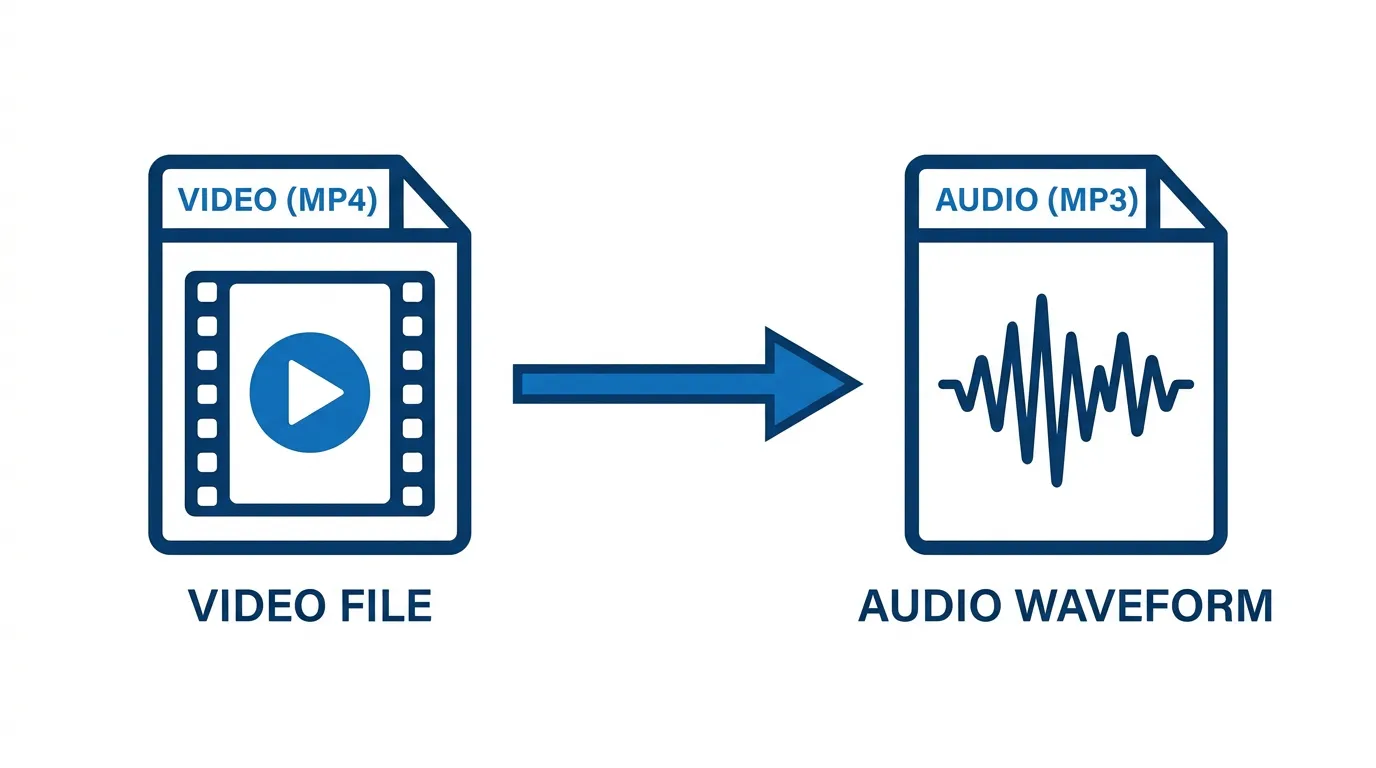
Whisper Web can transcribe audio files directly. You have two options:
Option A: Upload the video's audio directly Most recording software lets you export audio separately. If you have the audio file (MP3, WAV, M4A), you're ready.
Option B: Extract audio locally If you only have the video file, you can extract audio without any online tools:
# Using ffmpeg (free)
ffmpeg -i your-video.mp4 -vn -ar 44100 -ac 2 -b:a 192k audio.mp3
Or use any free tool like VLC or Audacity to export audio from the video.
Note: pasting a YouTube link into Whisper Web's URL to Text tab does not work, because YouTube blocks direct access to its audio. URL to Text only accepts direct links to audio files (.mp3, .wav, .m4a, .flac, .ogg).
Step 2: Transcribe with Whisper Web
- Open whisperweb.net
- Click the Audio to Text tab
- Upload your audio file
- If the video is not in English, turn on Multilingual and set the language (or choose auto-detect)
- Select the Base or Small model for a good accuracy/speed balance
- Click Transcribe
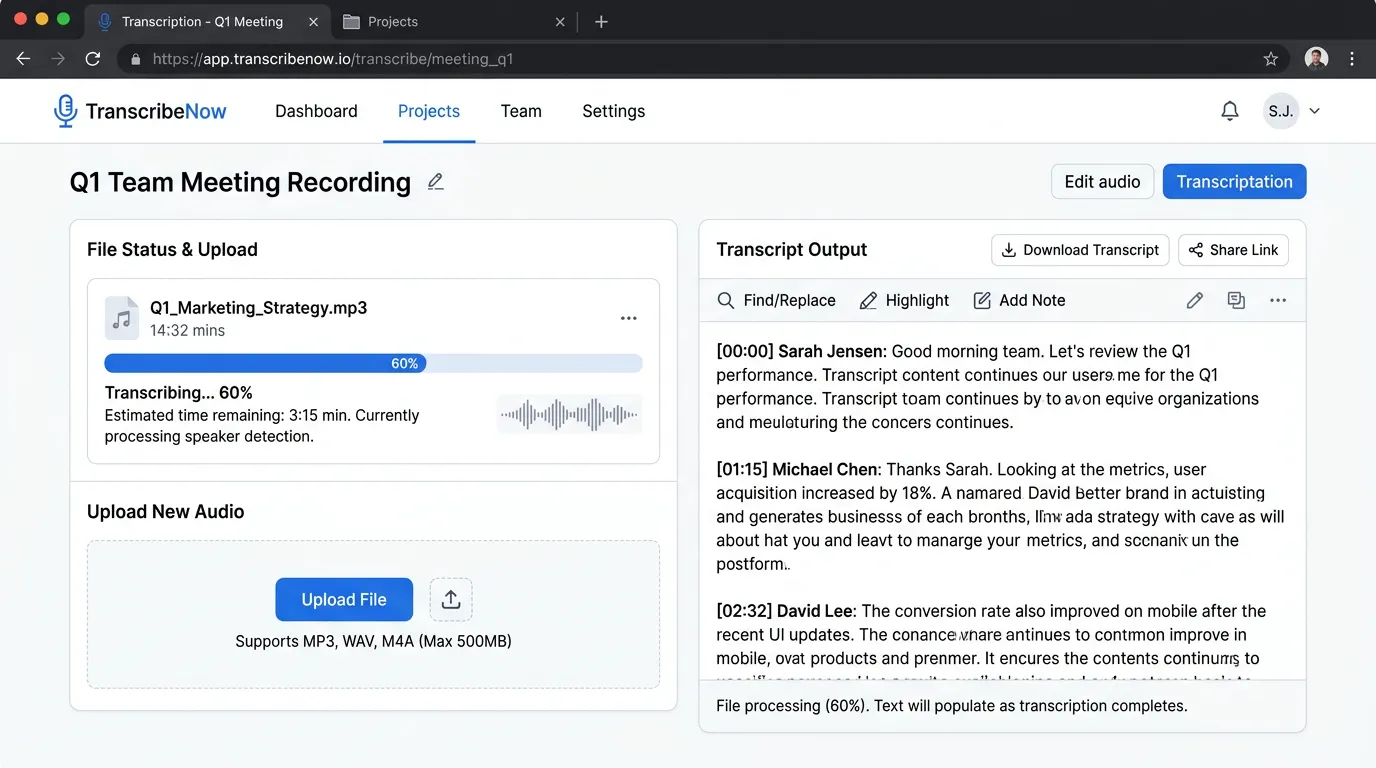
The transcription runs locally in your browser. For a 10-minute video, expect 2–5 minutes of processing time depending on your device.
Step 3: Export as SRT
Once transcription is complete, click Download SRT.
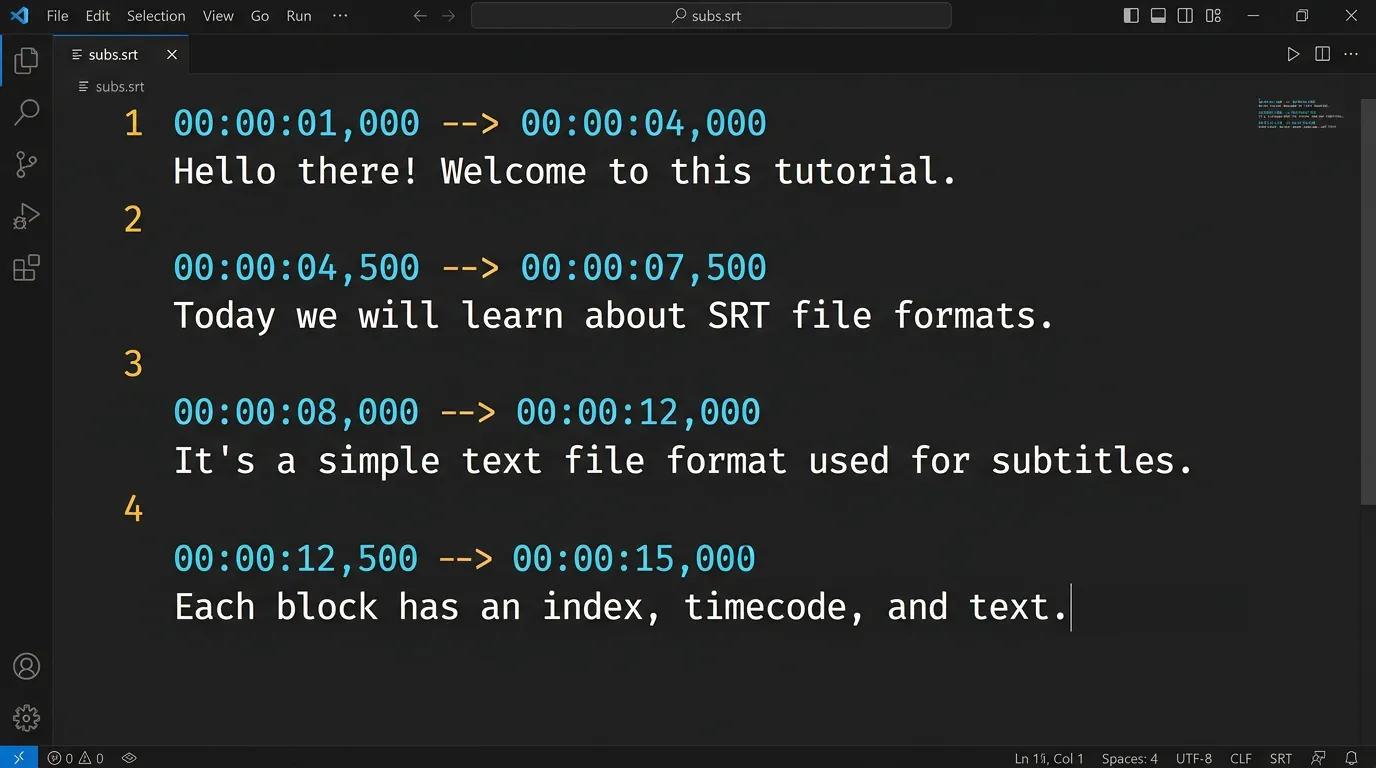
An SRT file looks like this:
1
00:00:00,000 --> 00:00:03,840
Welcome to this tutorial on building
your first React application.

2
00:00:03,840 --> 00:00:07,120
Today we'll cover components, props,
and state management.

3
00:00:07,120 --> 00:00:11,580
By the end, you'll have a working app
that you can continue building on.
Each block contains:
- A sequence number
- A timecode showing when the subtitle appears and disappears
- The subtitle text (1–2 lines)
Step 4: Edit Your SRT File (Optional but Recommended)
Whisper's output is usually excellent, but a quick review catches a few categories of errors:
Fix proper nouns. Search your SRT file for your name, your brand, guest names, and technical terms. Replace any phonetic approximations.
Check line breaks. Ideally each subtitle chunk is 1–2 lines and reads as a complete phrase. Whisper handles this well, but complex sentences sometimes need manual splitting.
Review timing around pauses. If there's a long pause in your video, the subtitle timing should reflect it. Whisper handles this automatically in most cases.
You can edit SRT files in any plain text editor (Notepad, TextEdit, VS Code). Just be careful not to accidentally modify the timecode format.
Step 5: Upload to YouTube Studio
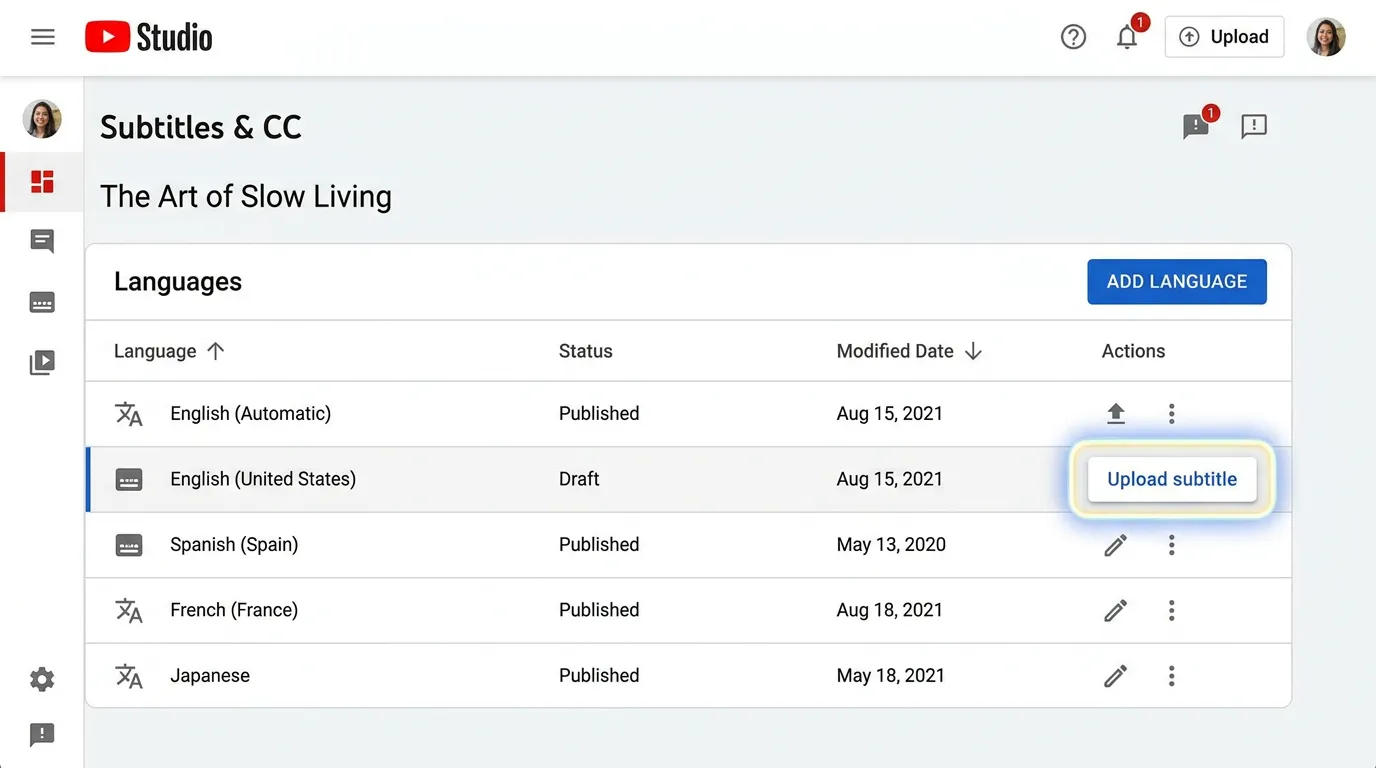
- Go to YouTube Studio
- Select the video you want to add subtitles to
- In the left menu, click Subtitles
- Click Add next to the language
- Select Upload file → With timing (since your SRT has timestamps)
- Choose your
.srtfile - Review the preview
- Click Publish
YouTube processes the upload within a few seconds. Your manually uploaded captions will replace the auto-generated ones.
Step 6: Add Captions in Other Languages (Optional)
If your audience is international, you can use Whisper Web's Translate mode to generate English subtitles from a video in another language (Translate only outputs English).
For full multilingual subtitle coverage:
- Transcribe in the original language → export SRT
- Run Whisper Web in Translate mode → get an English SRT
- Upload both to YouTube for the respective languages
This is particularly valuable for education content and technical tutorials where an international audience can benefit.
Pro Tips for Better Results
Record in a quiet environment. The single biggest factor affecting transcription accuracy is background noise. Even a small improvement in recording conditions significantly reduces errors.
Speak at a steady pace. Rushed speech or very fast delivery increases error rate. If your content allows, a measured speaking pace produces cleaner transcripts.
Use a consistent subtitle style. YouTube displays a maximum of 42 characters per line and 2 lines. If you edit your SRT file, try to keep subtitles within this limit.
Avoid all-caps subtitles. Some creators style their captions in all-caps for emphasis. This makes them harder to read and can reduce SEO value since search engines treat it differently.
Frequently Asked Questions
Q: Will YouTube keep my manually uploaded captions if I edit the video? If you trim the video in YouTube Studio, the captions timing may shift. Re-upload the SRT after significant edits. Simple description changes won't affect captions.
Q: Can I use this for videos longer than an hour? Yes. Whisper Web has no length limit. For videos over an hour, use the Base or Small model to keep processing time reasonable.
Q: Does uploading captions affect my video's YouTube ranking? Yes, positively. YouTube's algorithm uses caption content for indexing. More accurate captions = more keyword coverage = better discoverability.
Q: Can I create subtitles for someone else's video? You'd need to extract the audio first. If you have access to the audio file (or can extract it from the video), you can transcribe it. Uploading captions to YouTube requires access to the YouTube Studio account that owns the video.
Summary
Creating accurate YouTube subtitles with Whisper Web is a 5-step process:
- Get your audio (export it or extract it from the video file)
- Transcribe in Whisper Web (Base or Small model)
- Download the SRT file
- Optional: quick review and edit of proper nouns
- Upload to YouTube Studio → Subtitles → Add → Upload file with timing
The whole workflow for a 10-minute video takes about 15 minutes total, most of which is waiting for transcription. The SEO and accessibility benefits compound over time as your library of captioned videos grows.