
How to Transcribe Your Podcast with Whisper (Step-by-Step Guide)
Podcast transcription used to mean hours of tedious typing — or paying for an expensive transcription service. Today, you can get an accurate transcript of any podcast episode in minutes, entirely for free, right inside your browser.
This guide walks you through the exact process using Whisper Web, a free browser-based tool powered by OpenAI's Whisper model.
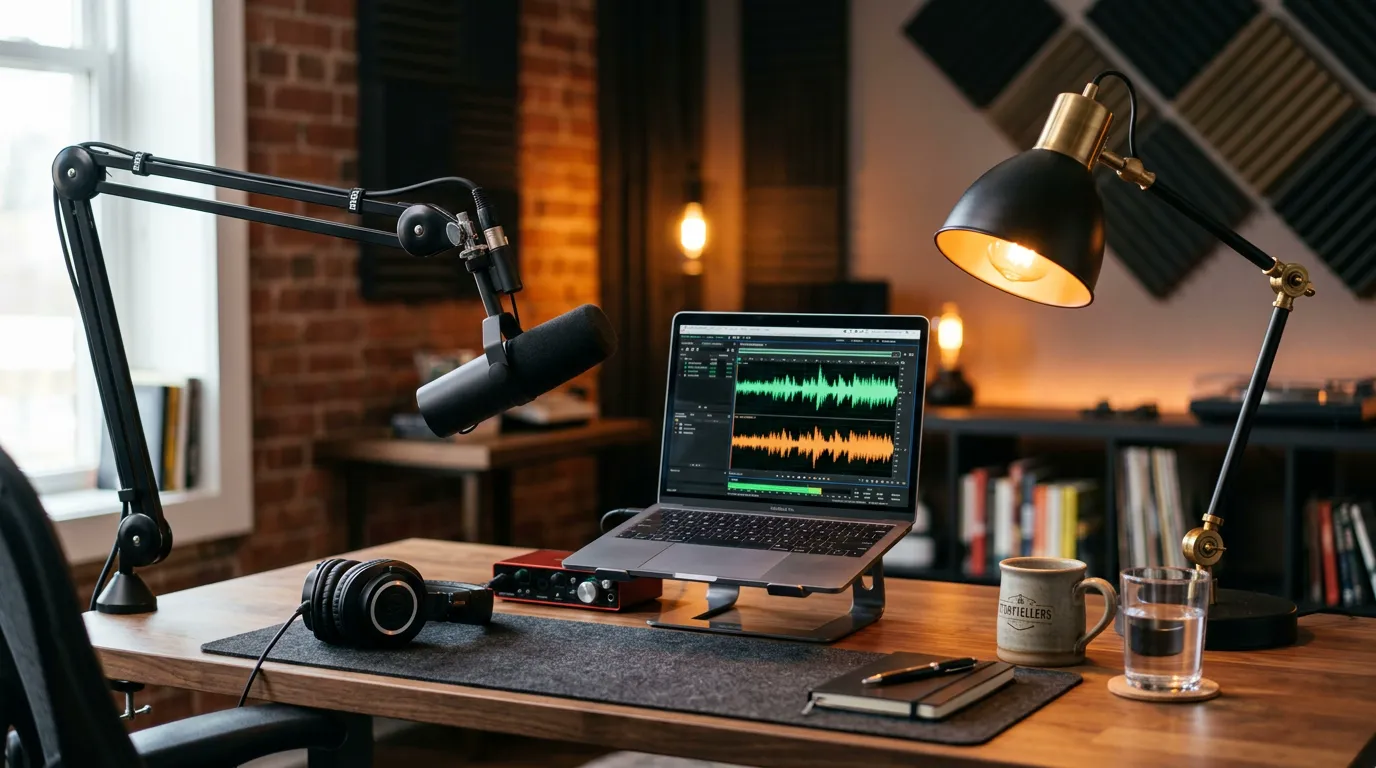
Why Transcribe Your Podcast?
Before we dive into the how, let's talk about the why. Transcribing your podcast episodes delivers several concrete benefits:
- SEO: Search engines can't listen to audio. A transcript makes your episode's content fully indexable, bringing organic search traffic to each episode page.
- Accessibility: Deaf and hard-of-hearing listeners can engage with your content when a transcript is available.
- Show notes: Pull accurate quotes and timestamps for your episode page without re-listening.
- Content repurposing: Turn a 45-minute interview into a blog post, Twitter thread, or newsletter in a fraction of the time.
- Searchability: Transcripts let you and your team search across episodes to find specific discussions.
What You'll Need
- Your podcast audio file (MP3, WAV, M4A, or FLAC)
- A modern browser (Chrome 113+ or Edge 113+ recommended for WebGPU acceleration)
- About 2–5 minutes per 10 minutes of audio
No account, no subscription, no installation required.
Step 1: Prepare Your Audio File
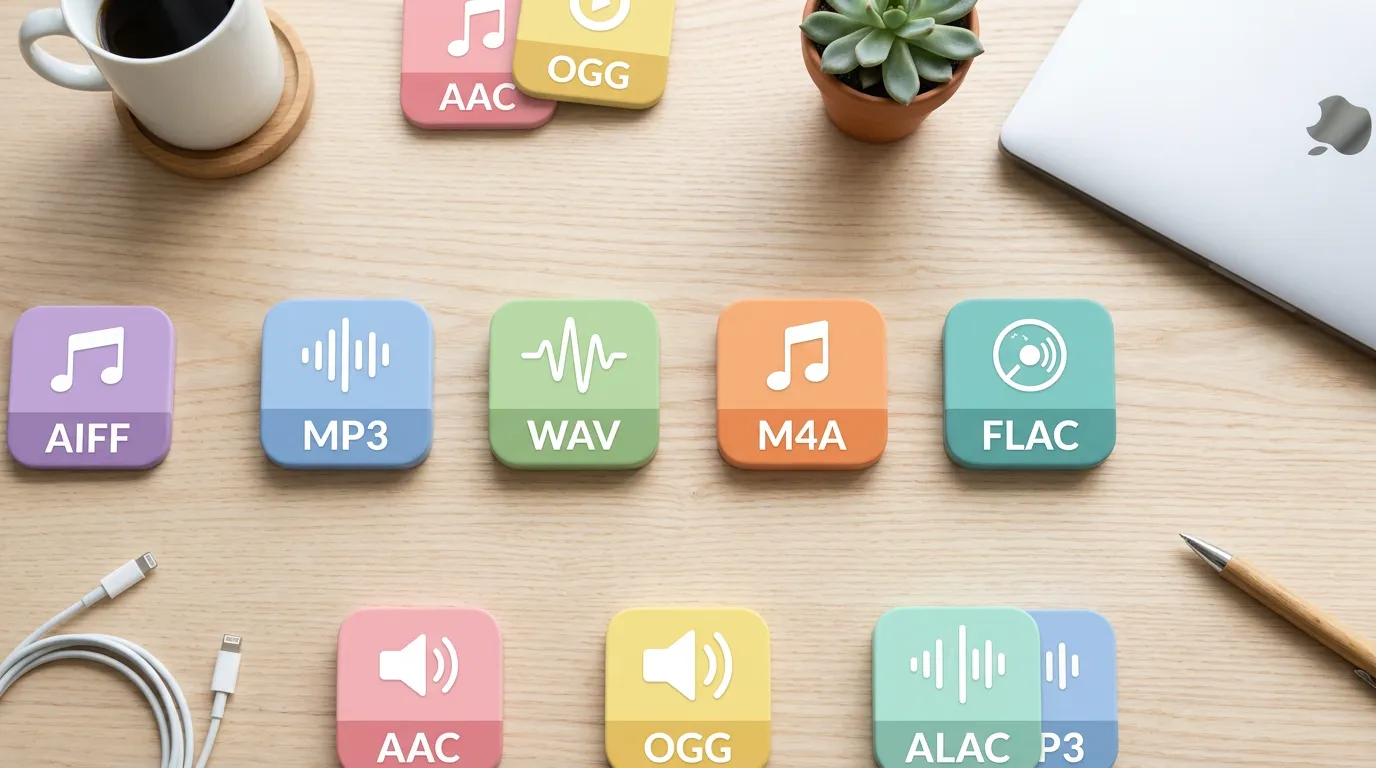
Whisper Web supports MP3, WAV, M4A, FLAC, and WEBM formats. Most podcast recording software exports to MP3 by default, so you're likely already good to go.
Tips for better accuracy:
- Use the highest quality export your software allows (192kbps or higher for MP3)
- If your recording has significant background noise, consider running it through a noise reduction tool first
- Separate multi-track recordings (one file per speaker) will give better results than a single mixed file
Step 2: Open Whisper Web and Upload Your File
- Go to whisperweb.net and click the Audio to Text tab
- Click Upload Audio File and select your podcast file
- The file is loaded directly into your browser — it never leaves your device
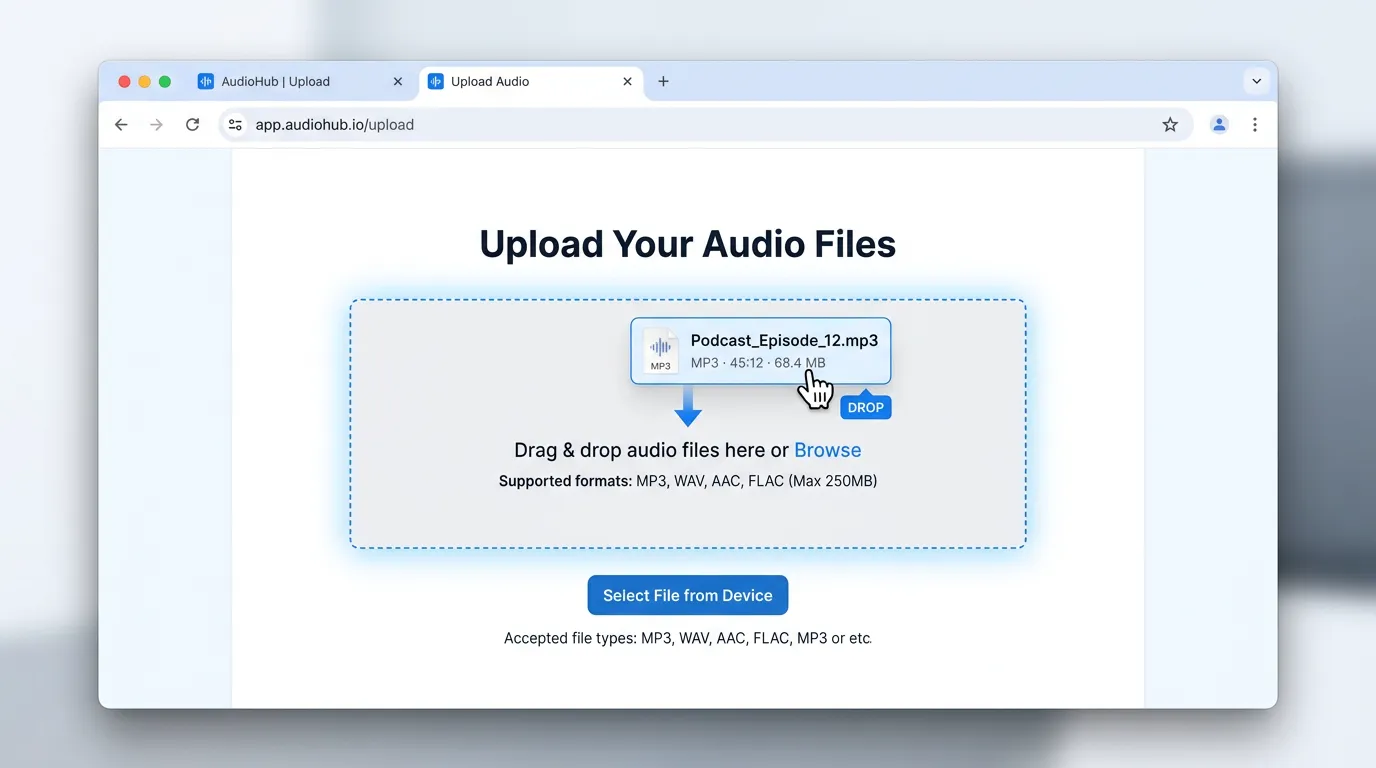
Privacy note: Whisper Web processes everything locally using WebAssembly and WebGPU. Your audio file is never sent to any server. This is especially important for unedited interviews that may contain sensitive or off-the-record remarks.
Step 3: Choose Your Settings
Before starting transcription, you have a few configuration options:
Language
Whisper Web supports 78 languages. If your podcast is in English, the default English settings work. For a foreign-language episode, turn on Multilingual mode, then choose auto-detect or, for better accuracy, select the language manually.
Task Mode
- Transcribe: Produces a transcript in the same language as the audio
- Translate: Converts the audio to English text — useful if you want English subtitles for a non-English episode
Model Size
Larger models are slower but more accurate:
| Model | Speed | Accuracy | Best For |
|---|---|---|---|
| Tiny | Fastest | Good | Quick drafts, clear audio |
| Base | Fast | Better | Most podcast content |
| Small | Moderate | Very good | Interviews, accents |
| Medium | Slower | Excellent | Professional productions |
For most podcast transcription, Base or Small offers the best balance.
Step 4: Start Transcription
Click Transcribe and watch the progress bar. Whisper Web shows real-time progress and displays segments as they're completed — you don't have to wait for the full file to finish.
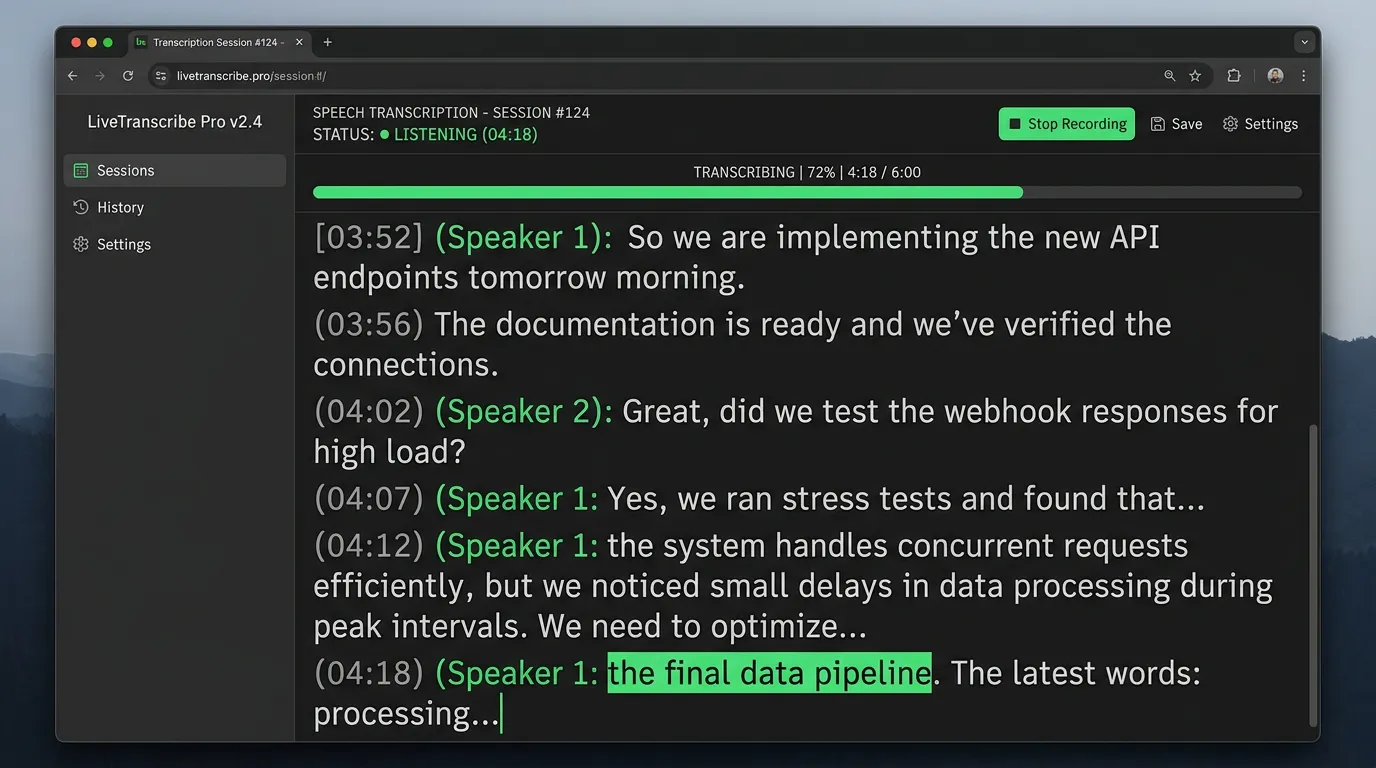
Typical processing times on a modern laptop:
- 30-minute episode: 3–8 minutes
- 60-minute episode: 6–15 minutes
- WebGPU-enabled browsers process 2–3x faster than CPU-only
Step 5: Review and Edit Your Transcript
Once transcription completes, review the output for any errors. Common issues to look for:
- Proper nouns: Names of people, places, and brands often need manual correction
- Technical terms: Industry jargon may be transcribed phonetically
- Homophone errors: Words that sound the same ("their" vs "there") may occasionally be wrong
- Crosstalk: Moments where two speakers talk simultaneously can produce garbled output
For a typical hour-long interview with clear audio, expect 2–3% error rate, which means around 5–10 corrections per 10 minutes of speech.
Step 6: Export Your Transcript
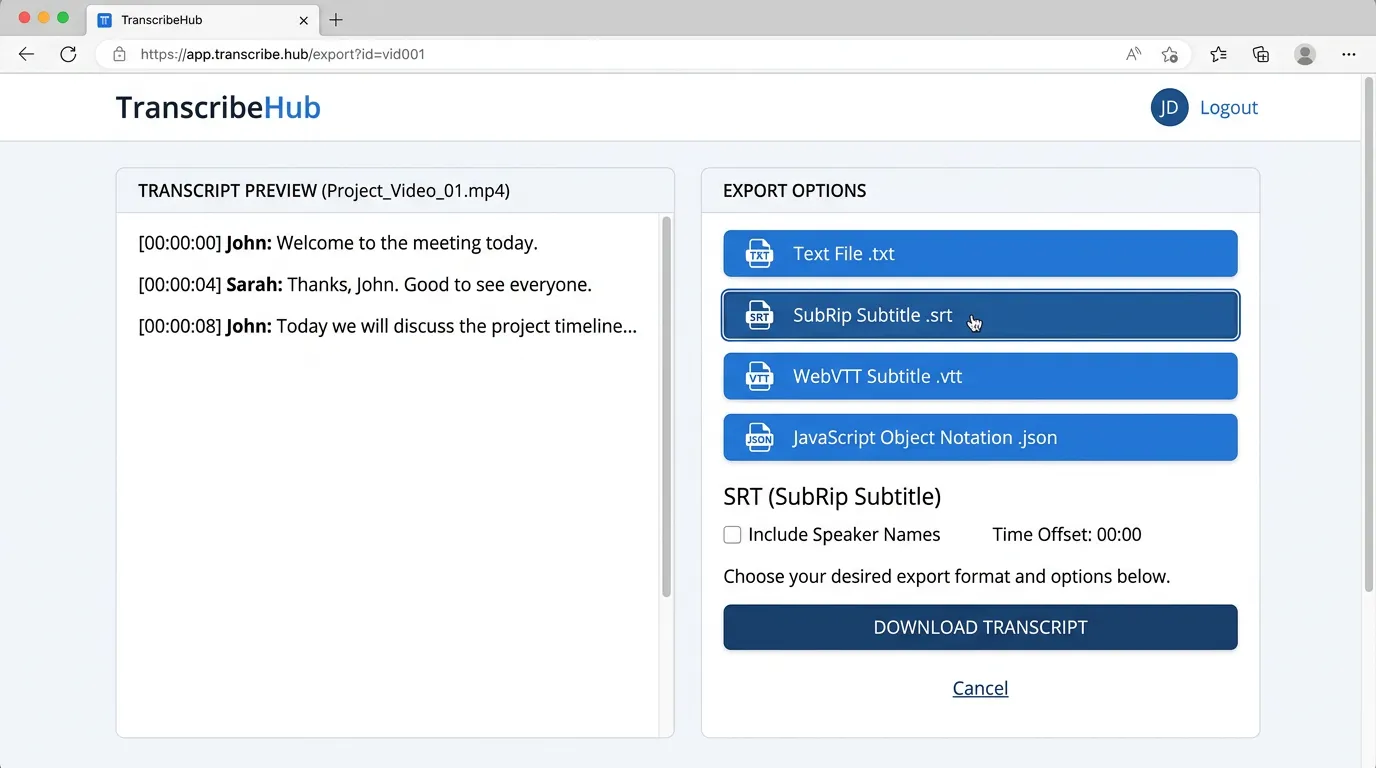
Whisper Web offers several export formats:
- Plain Text: Cleanest option for pasting into a document or CMS
- SRT Subtitles: Standard subtitle format with timestamps, used by YouTube, Vimeo, and most video players
- VTT Captions: WebVTT format for HTML5 video players
- JSON: Structured data with per-segment timing information — useful for developers building custom workflows
Uploading SRT to YouTube
- In YouTube Studio, open your video and click Subtitles
- Click Add → Upload file
- Select your
.srtfile - YouTube automatically syncs it with the video
Common Workflow Integrations
For Anchor/Spotify: Export plain text and paste it into your episode description. Spotify will display it as an episode transcript.
For personal podcast websites: The JSON export gives you timestamped segments you can use to build an interactive, searchable transcript on your episode page.
For newsletter writers: Paste the plain text transcript into your AI writing tool to summarize and extract key insights for a listener newsletter.
Frequently Asked Questions
Q: Can Whisper Web handle multiple speakers? The current version transcribes all speech accurately but doesn't separate speakers automatically. You'll see continuous text that you can manually label. Speaker diarization is a feature we're exploring.
Q: What's the maximum file size? There's no hard file size limit — Whisper Web processes files of any length. The constraint is your device's memory. Very long files (3+ hours) may require the Tiny or Base model on devices with limited RAM.
Q: My audio has background music. Will that affect accuracy? Background music at low volume usually doesn't significantly affect accuracy. Very loud music or music that closely competes with the voice in frequency will reduce accuracy. In those cases, consider editing the audio to reduce music volume before transcribing.
Summary
Transcribing your podcast with Whisper Web takes five straightforward steps:
- Prepare your audio file (MP3, WAV, M4A)
- Upload it in the Audio to Text tab
- Choose language and model settings
- Wait for transcription to complete
- Export in your preferred format (plain text, SRT, VTT, or JSON)
The entire process is free, requires no account, and keeps your audio completely private. For most podcast producers, the biggest time investment is the initial review and correction — and even that is far faster than transcribing from scratch.